Codex app features
Source URL: https://developers.openai.com/codex/app/features
Codex app features
Section titled “Codex app features”The Codex app is a focused desktop experience for working on Codex threads in parallel, with built-in worktree support, automations, and Git functionality.
Multitask across projects
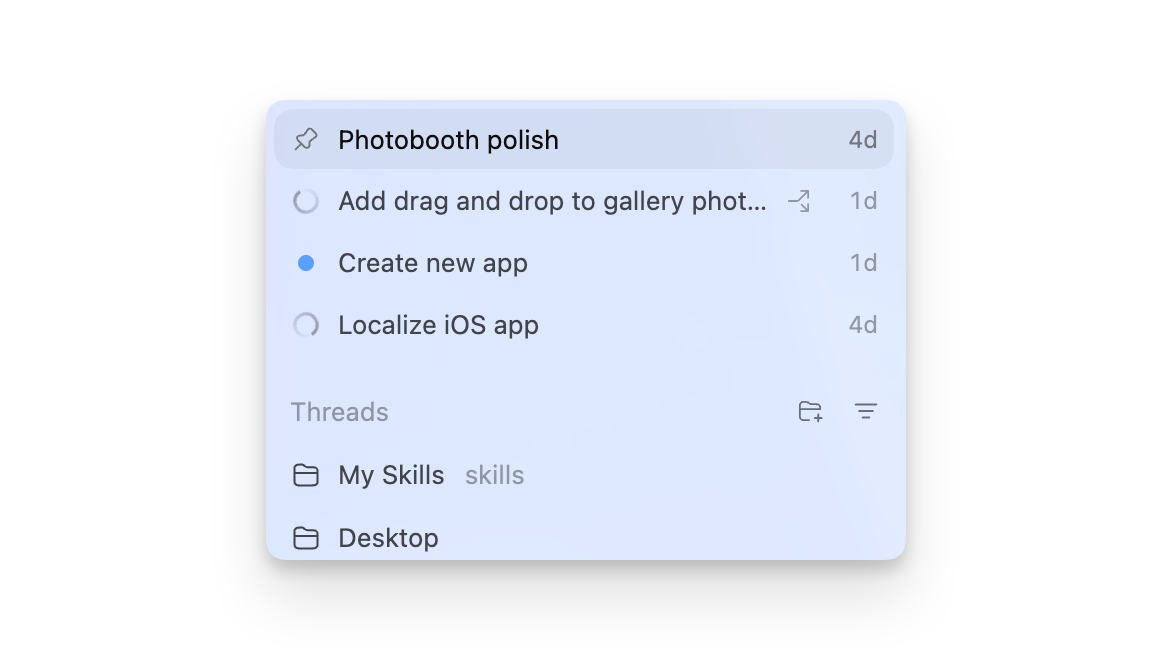
Section titled “Multitask across projects”Use one Codex app window to run tasks across projects. Add a project for each codebase and switch between them as needed.
If you’ve used the Codex CLI, a project is like starting a session in a specific directory.
If you work in a single repository with two or more apps or packages, split distinct projects into separate app projects so the sandbox only includes the files for that project.
Skills support
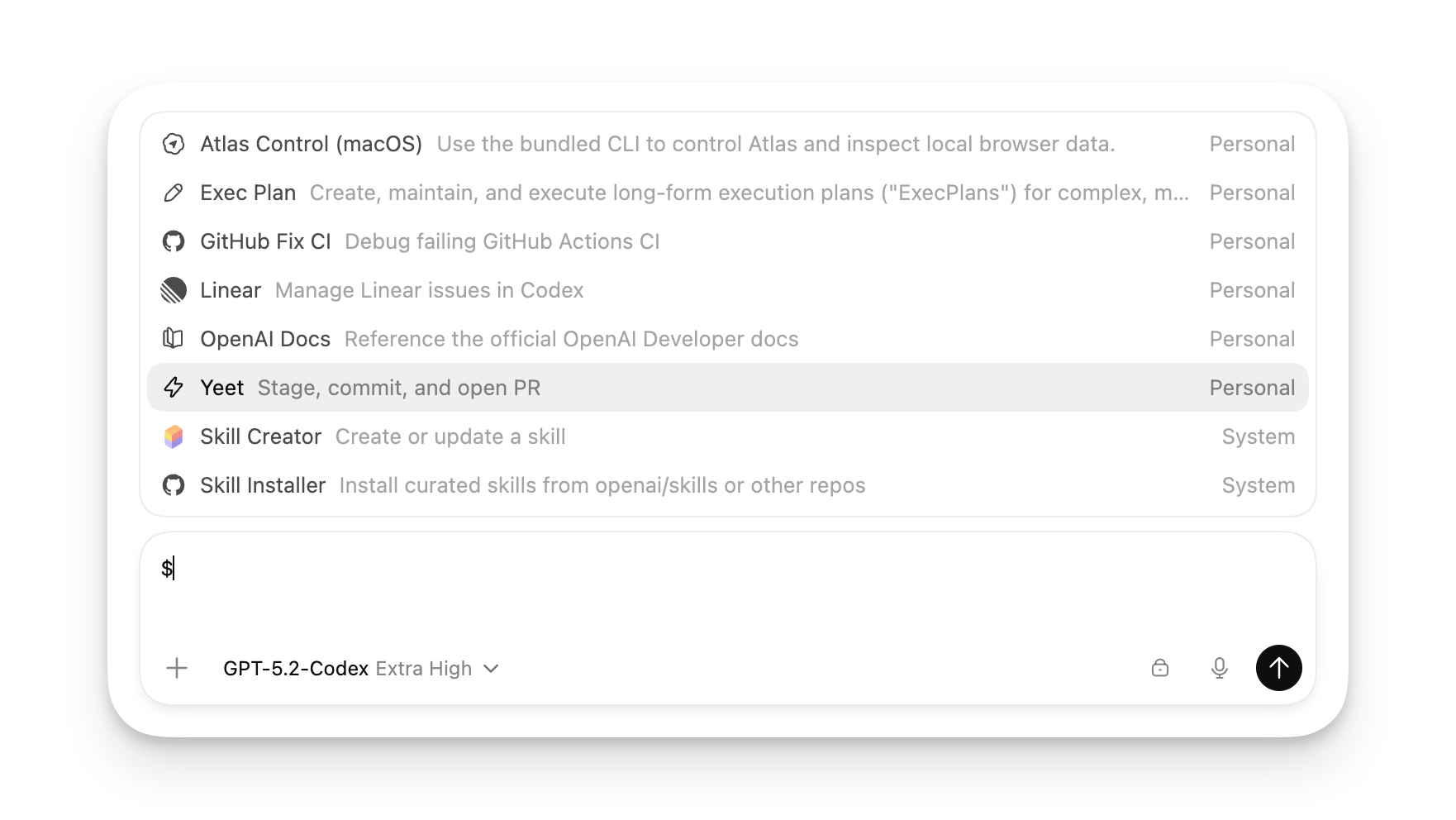
Section titled “Skills support”The Codex app supports the same agent skills as the CLI and IDE Extension. You can also view and explore new skills that your team has created across your different projects by clicking Skills in the sidebar.
Automations
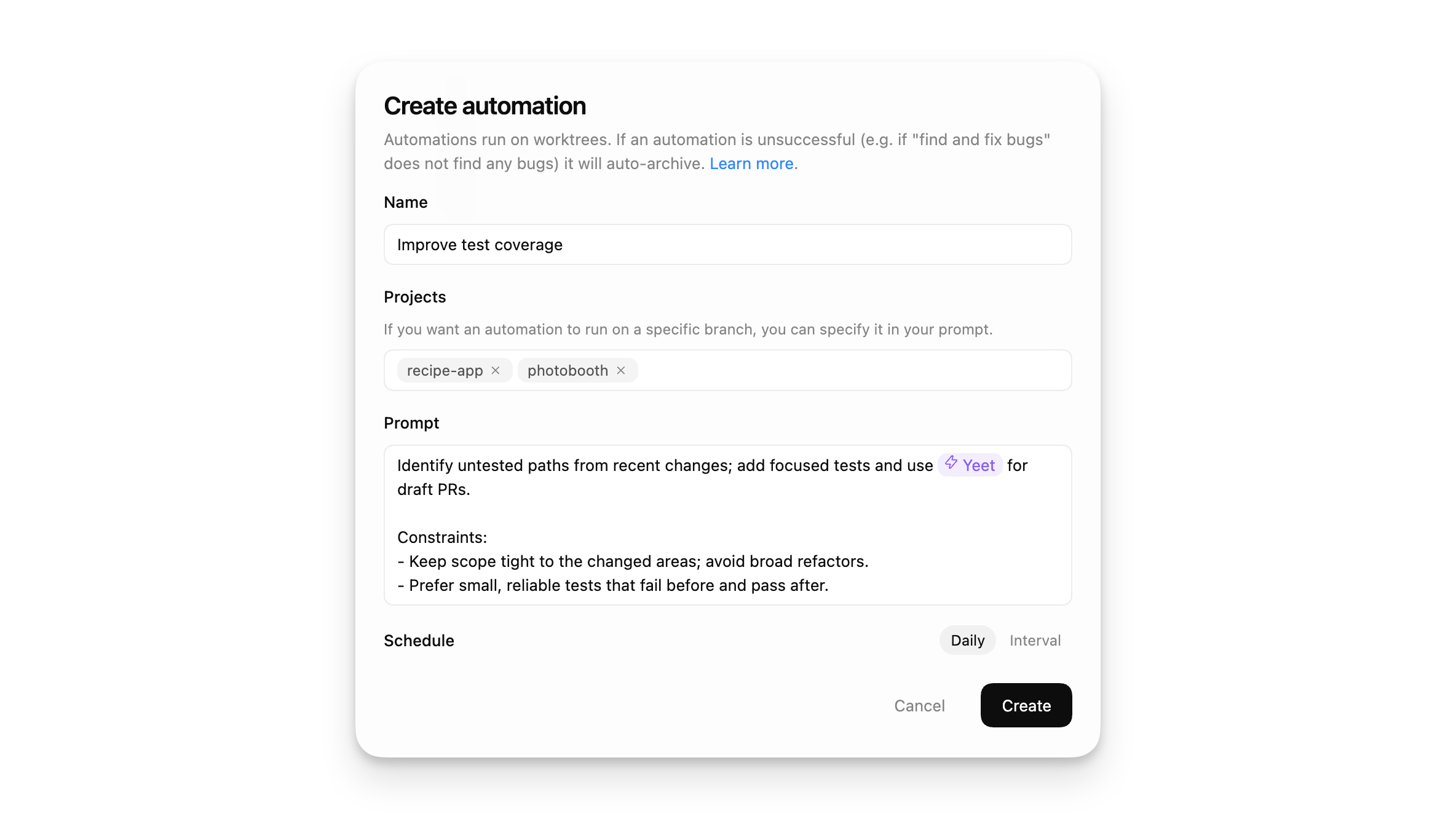
Section titled “Automations”You can also combine skills with automations to perform routine tasks such as evaluating errors in your telemetry and submitting fixes or creating reports on recent codebase changes.
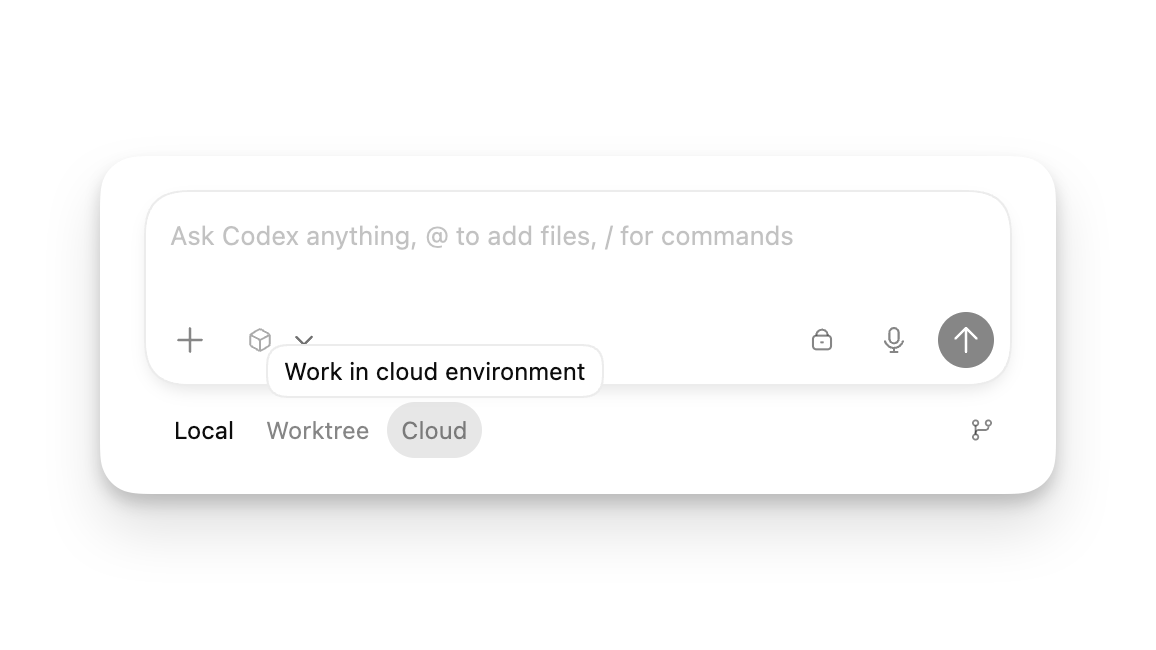
Each thread runs in a selected mode. When starting a thread, you can choose:
- Local: work directly in your current project directory.
- Worktree: isolate changes in a Git worktree. Learn more.
- Cloud: run remotely in a configured cloud environment.
Both Local and Worktree threads will run on your computer.
For the full glossary and concepts, explore the concepts section.
Built-in Git tools
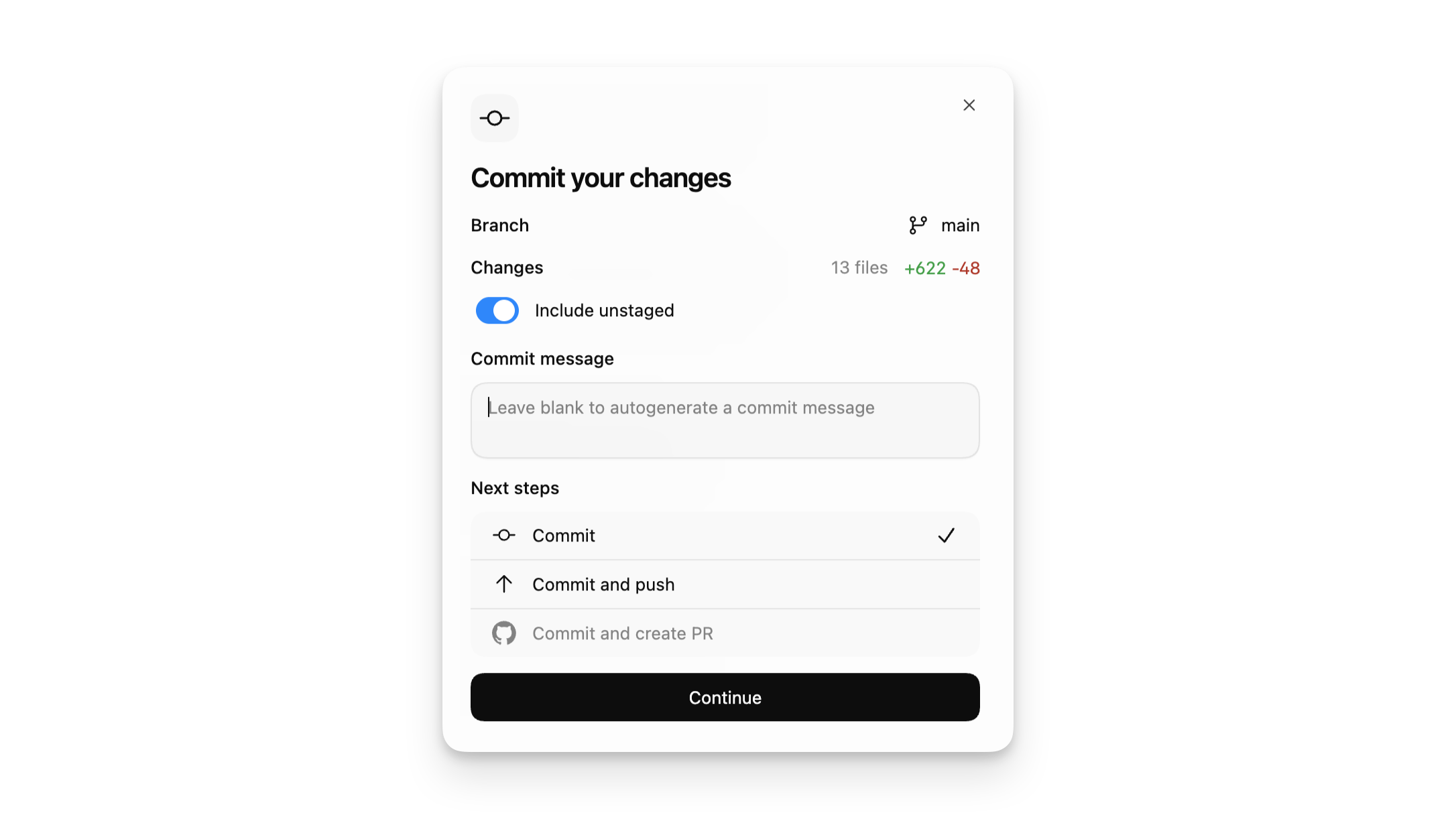
Section titled “Built-in Git tools”The Codex app provides common Git features directly within the app.
The diff pane shows a Git diff of your changes in your local project or worktree checkout. You can also add inline comments for Codex to address and stage or revert specific chunks or entire files.
You can also commit, push, and create pull requests for local and worktree tasks directly from within the Codex app.
For more advanced Git tasks, use the integrated terminal.
Worktree support
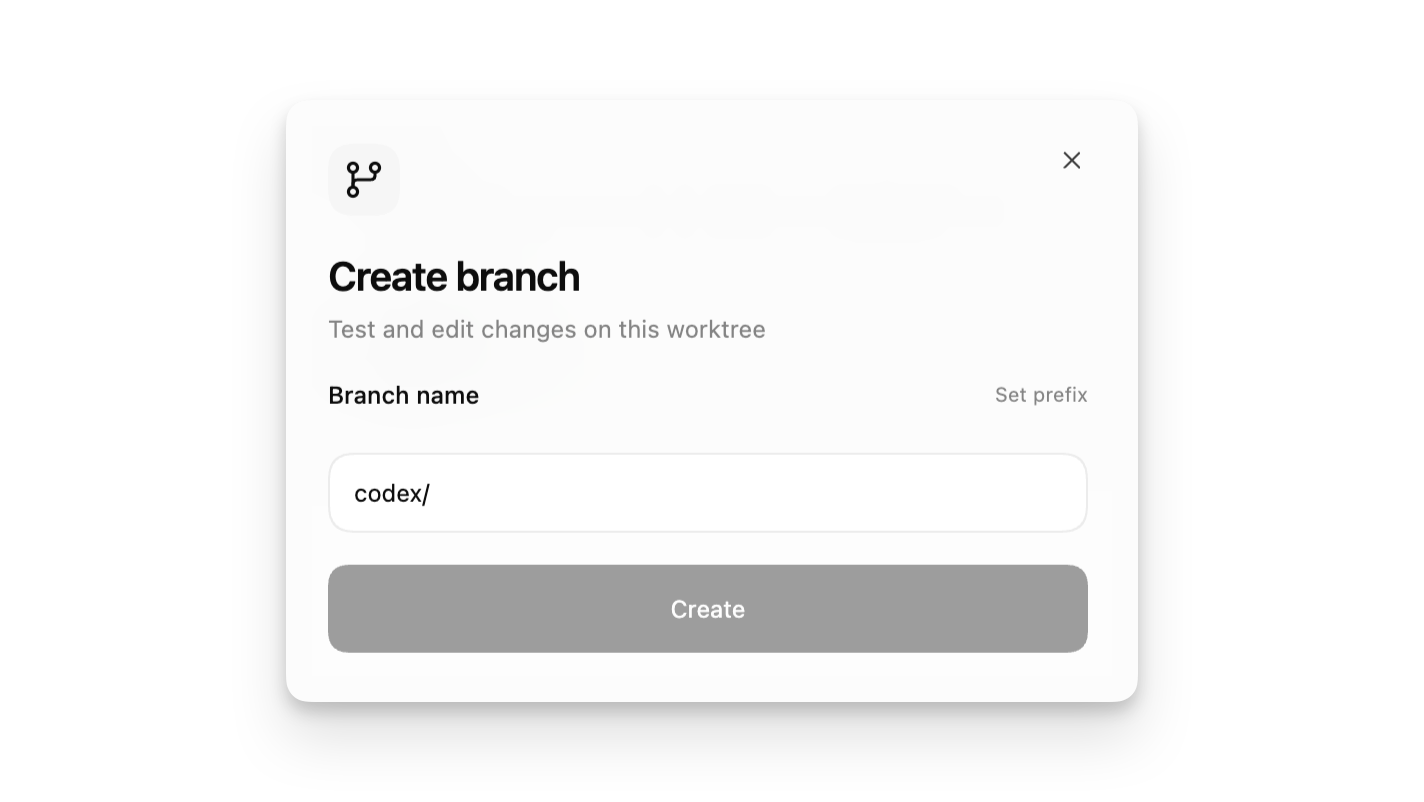
Section titled “Worktree support”When you create a new thread, choose Local or Worktree. Local works directly within your project. Worktree creates a new Git worktree so changes stay isolated from your regular project.
Use Worktree when you want to try a new idea without touching your current work, or when you want Codex to run independent tasks side by side in the same project.
Automations run in dedicated background worktrees for Git repositories, and directly in the project directory for non-version-controlled projects.
Learn more about using worktrees in the Codex app.
Integrated terminal
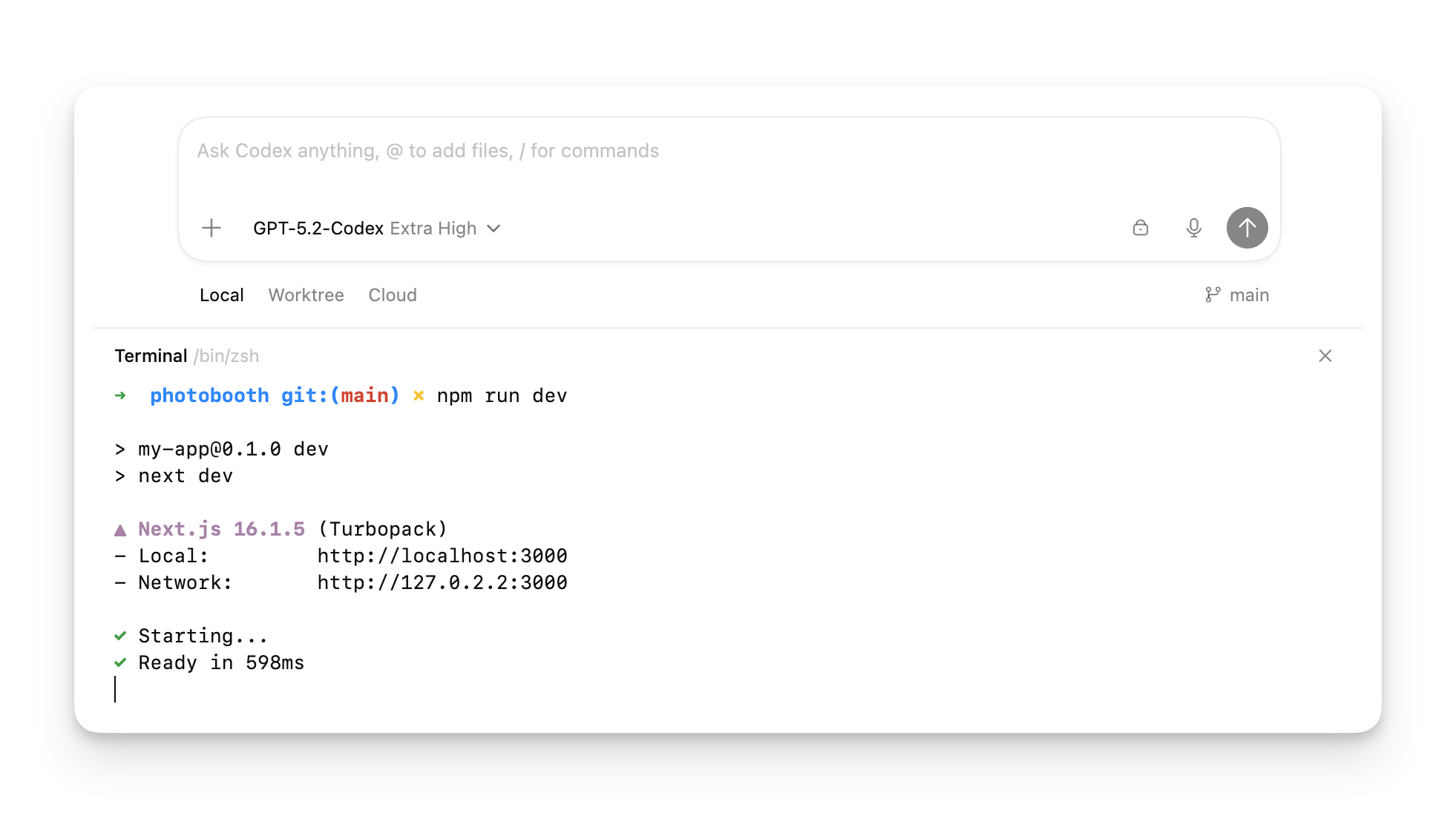
Section titled “Integrated terminal”Each thread includes a built-in terminal scoped to the current project or worktree. Toggle it using the terminal icon in the top right of the app or by pressing Cmd+J.
Use the terminal to validate changes, run scripts, and perform Git operations without leaving the app.
Common tasks include:
git statusgit pull --rebasepnpm testornpm testpnpm run lintor similar project commands
If you run a task regularly, you can define an action inside your local environment to add a shortcut button to the top of your Codex app window.
Note that Cmd+K opens the command palette in the Codex app. It doesn’t clear the terminal. To clear the terminal use Ctrl+L.
Voice dictation
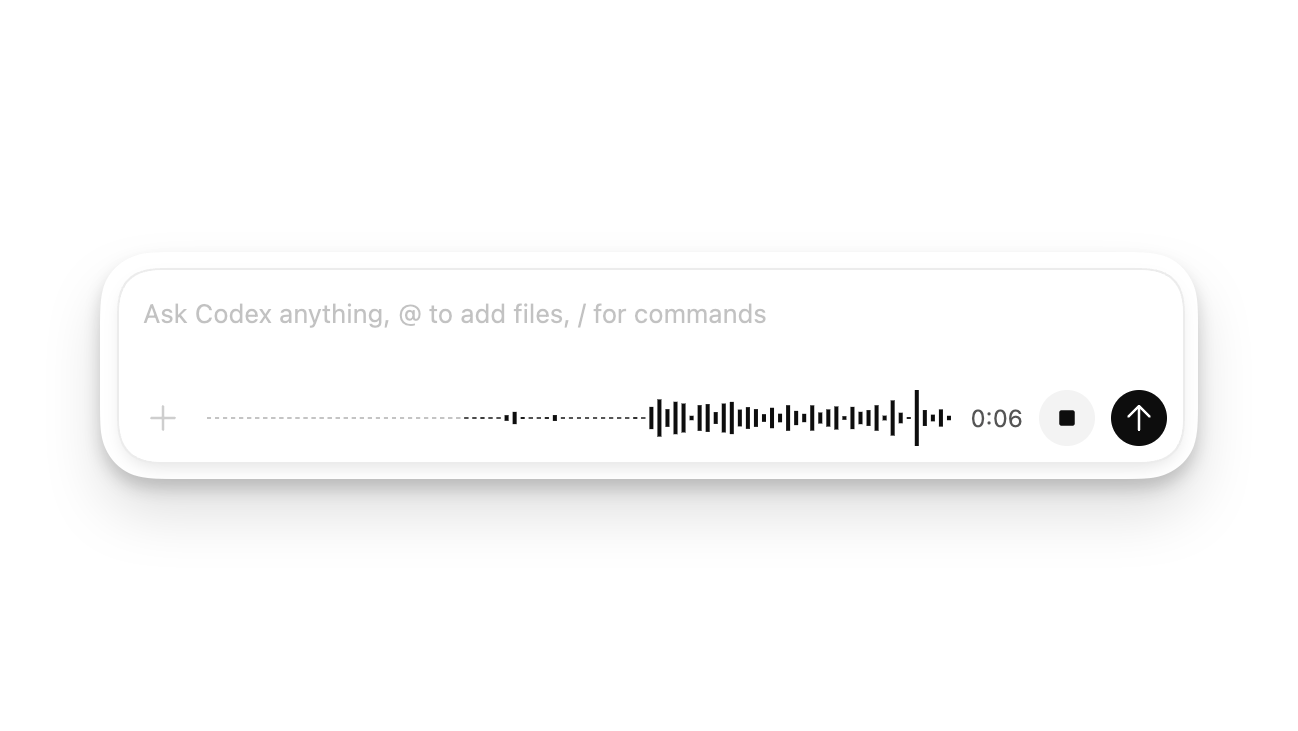
Section titled “Voice dictation”Use your voice to prompt Codex. Hold Ctrl+M while the composer is visible and start talking. Your voice will be transcribed. Edit the transcribed prompt or hit send to have Codex start work.
Floating pop-out window
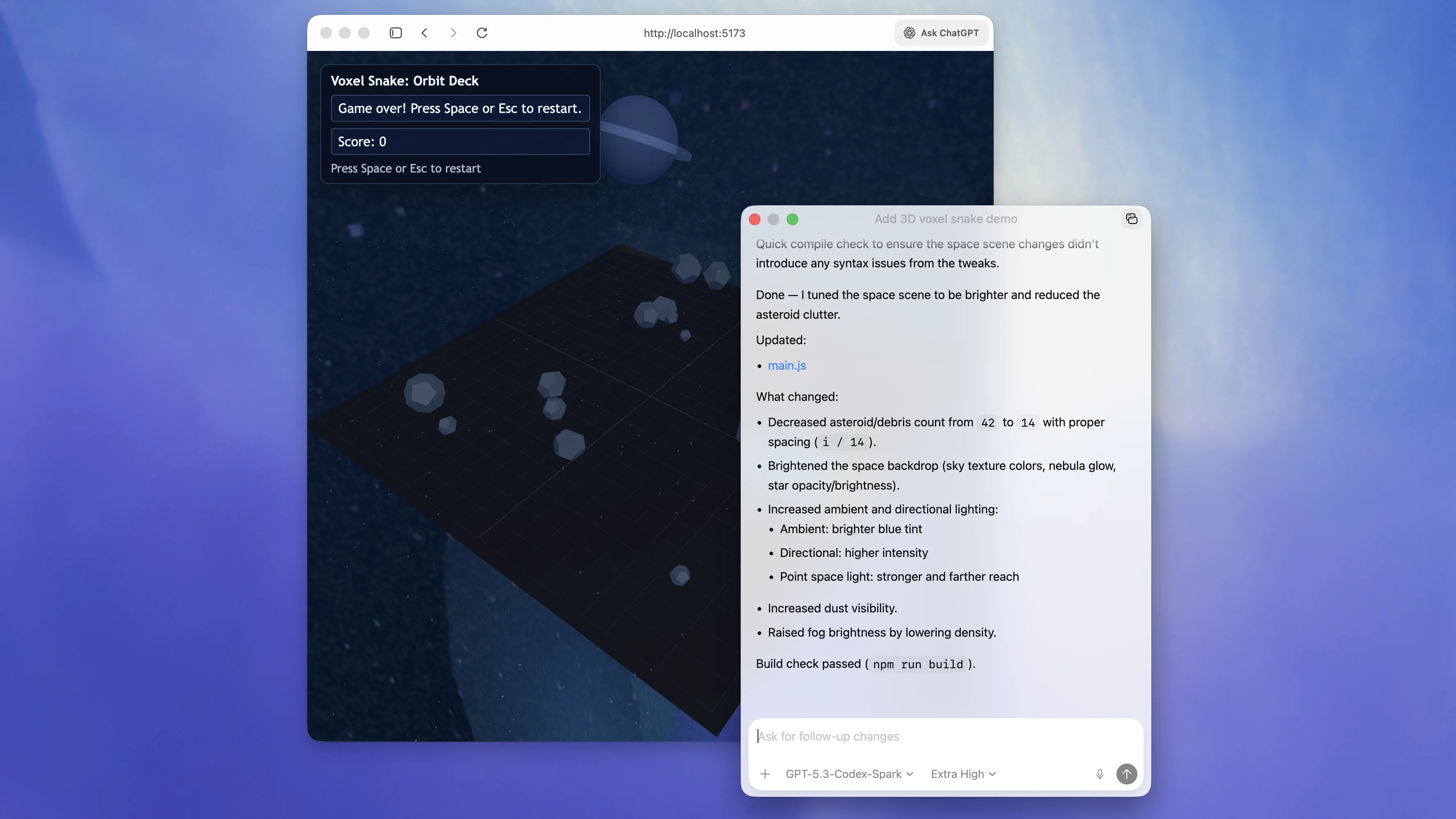
Section titled “Floating pop-out window”Pop out an active conversation thread into a separate window and move it to where you are actively working. This is ideal for front-end work, where you can keep the thread near your browser, editor, or design preview while iterating quickly.
You can also toggle the pop-out window to stay on top when you want it to remain visible across your workflow.
Sync with the IDE extension
Section titled “Sync with the IDE extension”If you have the Codex IDE Extension installed in your editor, your Codex app and IDE Extension automatically sync when both are in the same project.
When they sync, you see an IDE context option in the Codex app composer. With “Auto context” enabled, the Codex app tracks the files you’re viewing, so you can reference them indirectly (for example, “What’s this file about?”). You can also see threads running in the Codex app inside the IDE Extension, and vice versa.
If you’re unsure whether the app includes context, toggle it off and ask the same question again to compare results.
Approvals and sandboxing
Section titled “Approvals and sandboxing”Your approval and sandbox settings constrain Codex actions.
- Approvals determine when Codex pauses for permission before running a command.
- The sandbox controls which directories and network access Codex can use.
When you see prompts like “approve once” or “approve for this session,” you are granting different scopes of permission for tool execution. If you are unsure, approve the narrowest option and continue iterating.
By default, Codex scopes work to the current project. In most cases, that’s the right constraint.
If your task requires work across more than one repository or directory, prefer opening separate projects or using worktrees rather than asking Codex to roam outside the project root.
For details on how Codex handles sandboxing, check out the security documentation.
MCP support
Section titled “MCP support”The Codex app, CLI, and IDE Extension share Model Context Protocol (MCP) settings. If you’ve already configured MCP servers in one, they’re automatically adopted by the others. To configure new servers, open the MCP section in the app’s settings and either enable a recommended server or add a new server to your configuration.
Web search
Section titled “Web search”Codex ships with a first-party web search tool. For local tasks in the Codex IDE Extension, Codex enables web search by default and serves results from a web search cache. If you configure your sandbox for full access, web search defaults to live results. See Config basics to disable web search or switch to live results that fetch the most recent data.
Image input
Section titled “Image input”You can drag and drop images into the prompt composer to include them as context. Hold down Shift
while dropping an image to add the image to the context.
You can also ask Codex to view images on your system. By giving Codex tools to take screenshots of the app you are working on, Codex can verify the work it’s doing.
Notifications
Section titled “Notifications”By default, the Codex app sends notifications when a task completes or needs approval while the app is in the background.
In the Codex app settings, you can choose to never send notifications or always send them, even when the app is in focus.
Keep your computer awake
Section titled “Keep your computer awake”Since your tasks might take a while to complete, you can have the Codex app prevent your computer from going to sleep by enabling the “Prevent sleep while running” toggle in the app’s settings.