How to optimize package bundling
Source URL: https://nextjs.org/docs/pages/guides/package-bundling
How to optimize package bundling
Section titled “How to optimize package bundling”Bundling is the process of combining your application code and its dependencies into optimized output files for the client and server. Smaller bundles load faster, reduce JavaScript execution time, improve Core Web Vitals, and lower server cold start times.
Next.js automatically optimizes bundles by code splitting, tree-shaking, and other techniques. However, there are some cases where you may need to optimize your bundles manually.
There are two tools for analyzing your application’s bundles:
This guide will walk you through how to use each tool and how to optimize large bundles.
Next.js Bundle Analyzer (Experimental)
Section titled “Next.js Bundle Analyzer (Experimental)”Available in v16.1 and later. You can share feedback in the dedicated GitHub discussion and view the demo at turbopack-bundle-analyzer-demo.vercel.sh.
The Next.js Bundle Analyzer is integrated with Turbopack’s module graph. You can inspect server and client modules with precise import tracing, making it easier to find large dependencies. Open the interactive Bundle Analyzer demo to explore the module graph.
Step 1: Run the Turbopack Bundle Analyzer
Section titled “Step 1: Run the Turbopack Bundle Analyzer”To get started, run the following command and open up the interactive view in your browser.
npx next experimental-analyzeyarn next experimental-analyzepnpm next experimental-analyzebunx next experimental-analyzeStep 2: Filter and inspect modules
Section titled “Step 2: Filter and inspect modules”Within the UI, you can filter by route, environment (client or server), and type (JavaScript, CSS, JSON), or search by file:
Step 3: Trace modules with import chains
Section titled “Step 3: Trace modules with import chains”The treemap shows each module as a rectangle. Where the size of the module is represented by the area of the rectangle.
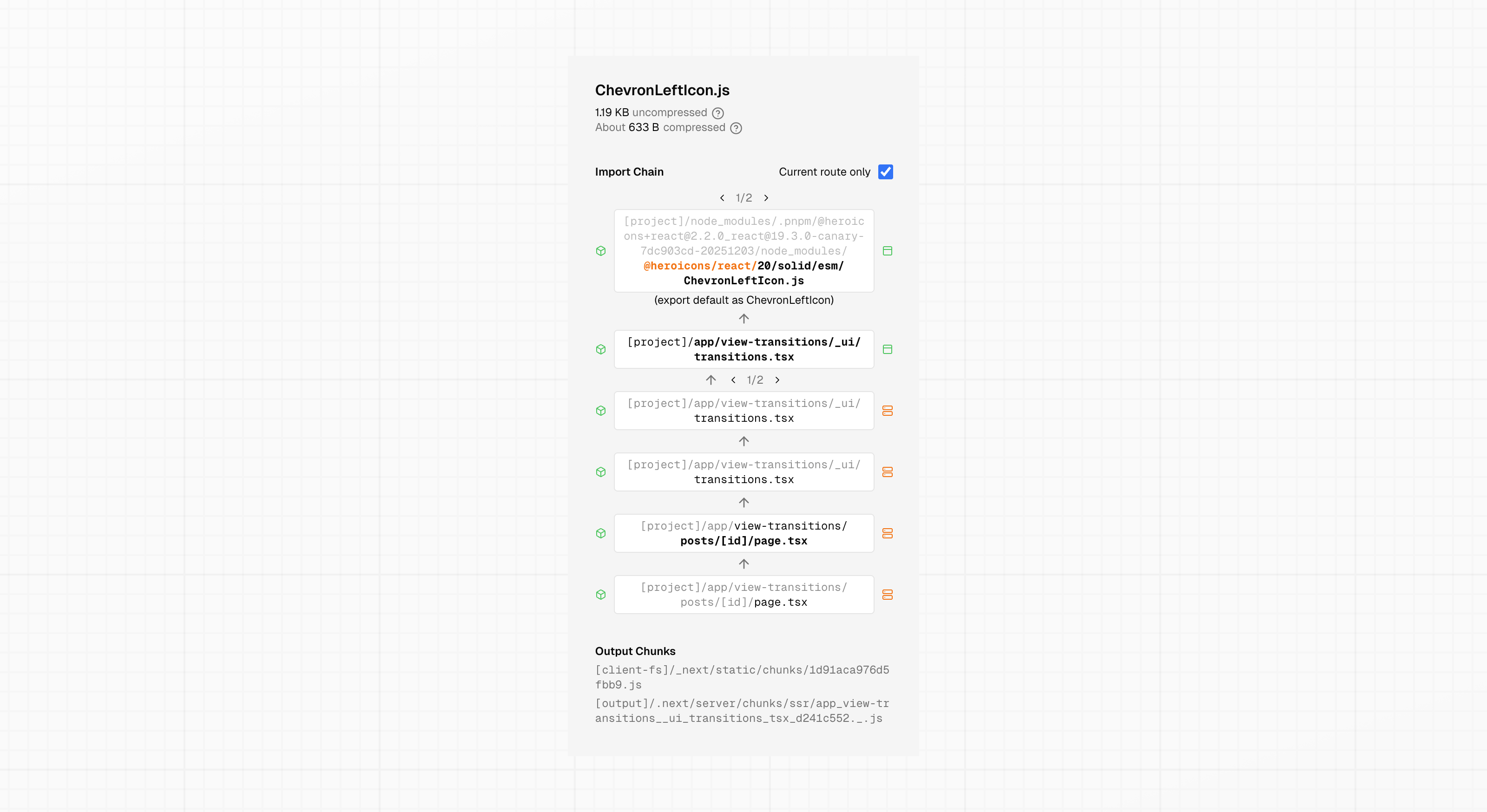
Click a module to see its size, inspect its full import chain and see exactly where it’s used in your application:
Step 4: Write output to disk for sharing or diffing
Section titled “Step 4: Write output to disk for sharing or diffing”If you want to share the analysis with teammates or compare bundle sizes before/after optimizations, you can skip the interactive view and save the analysis as a static file with the --output flag:
npx next experimental-analyze --outputyarn next experimental-analyze --outputpnpm next experimental-analyze --outputbunx next experimental-analyze --outputThis command writes the output to .next/diagnostics/analyze. You can copy this directory elsewhere to compare results:
cp -r .next/diagnostics/analyze ./analyze-before-refactorMore options are available for the Bundle Analyzer, see Next.js CLI reference docs for the full list.
@next/bundle-analyzer for Webpack
Section titled “@next/bundle-analyzer for Webpack”The @next/bundle-analyzer is a plugin that helps you manage the size of your application bundles. It generates a visual report of the size of each package and their dependencies. You can use the information to remove large dependencies, split, or lazy-load your code.
Step 1: Installation
Section titled “Step 1: Installation”Install the plugin by running the following command:
pnpm add @next/bundle-analyzernpm install @next/bundle-analyzeryarn add @next/bundle-analyzerbun add @next/bundle-analyzerThen, add the bundle analyzer’s settings to your next.config.js.
/** @type {import('next').NextConfig} */const nextConfig = {}
const withBundleAnalyzer = require('@next/bundle-analyzer')({  enabled: process.env.ANALYZE === 'true',})
module.exports = withBundleAnalyzer(nextConfig)
Step 2: Generating a report
Section titled “Step 2: Generating a report”Run the following command to analyze your bundles:
ANALYZE=true npm run build# orANALYZE=true yarn build# orANALYZE=true pnpm buildThe report will open three new tabs in your browser, which you can inspect.
Optimizing large bundles
Section titled “Optimizing large bundles”Once you’ve identified a large module, the solution will depend on your use case. Below are common causes and how to fix them:
Packages with many exports
Section titled “Packages with many exports”If you’re using a package that exports hundreds of modules (such as icon and utility libraries), you can optimize how those imports are resolved using the optimizePackageImports option in your next.config.js file. This option will only load the modules you actually use, while still giving you the convenience of writing import statements with many named exports.
/** @type {import('next').NextConfig} */const nextConfig = {  experimental: {    optimizePackageImports: ['icon-library'],  },}
module.exports = nextConfig
Good to know: Next.js also optimizes some libraries automatically, thus they do not need to be included in the
optimizePackageImportslist. See the full list of supported packages.
Heavy client workloads
Section titled “Heavy client workloads”A common cause of large client bundles is doing expensive rendering work in Client Components. This often happens with libraries that exist only to transform data into UI, such as syntax highlighting, chart rendering, or markdown parsing.
If that work does not require browser APIs or user interaction, it can be run in a Server Component.
In this example, a prism based highlighter runs in a Client Component. Even though the final output is just a <code> block, the entire highlighting library is bundled into the client JavaScript bundle:
'use client'
import Highlight from 'prism-react-renderer'import theme from 'prism-react-renderer/themes/github'
export default function Page() {  const code = `export function hello() {    console.log("hi")  }`
  return (    <article>      <h1>Blog Post Title</h1>
      {/* The prism package and its tokenization logic are shipped to the client */}      <Highlight code={code} language="tsx" theme={theme}>        {({ className, style, tokens, getLineProps, getTokenProps }) => (          <pre className={className} style={style}>            <code>              {tokens.map((line, i) => (                <div key={i} {...getLineProps({ line })}>                  {line.map((token, key) => (                    <span key={key} {...getTokenProps({ token })} />                  ))}                </div>              ))}            </code>          </pre>        )}      </Highlight>    </article>  )}
This increases bundle size because the client must download and execute the highlighting library, even though the result is static HTML.
Instead, move the highlighting logic to a Server Component and render the final HTML on the server. The client will only receive the rendered markup.
import { codeToHtml } from 'shiki'
export default async function Page() {  const code = `export function hello() {    console.log("hi")  }`
  // The Shiki package runs on the server and is never bundled for the client.  const highlightedHtml = await codeToHtml(code, {    lang: 'tsx',    theme: 'github-dark',  })
  return (    <article>      <h1>Blog Post Title</h1>
      {/* Client receives plain markup */}      <pre>        <code dangerouslySetInnerHTML={{ __html: highlightedHtml }} />      </pre>    </article>  )}
External packages that aren’t pre-bundled
Section titled “External packages that aren’t pre-bundled”By default, packages imported into your application are not bundled. This can impact performance if external packages are not pre-bundled, for example, if imported from a monorepo or node_modules.
To bundle specific packages, you can use the transpilePackages option in your next.config.js.
/** @type {import('next').NextConfig} */const nextConfig = {  transpilePackages: ['package-name'],}
module.exports = nextConfig
To automatically bundle all packages, you can use the bundlePagesRouterDependencies option in your next.config.js.
/** @type {import('next').NextConfig} */const nextConfig = {  bundlePagesRouterDependencies: true,}
module.exports = nextConfig
Opting specific packages out of bundling
Section titled “Opting specific packages out of bundling”If you identify packages that shouldn’t be in the bundle, you can opt specific packages out of automatic bundling using the serverExternalPackages option in your next.config.js:
/** @type {import('next').NextConfig} */const nextConfig = {  // Automatically bundle external packages:  bundlePagesRouterDependencies: true,  // Opt specific packages out of bundling:  serverExternalPackages: ['package-name'],}
module.exports = nextConfig
Learn more about optimizing your application for production.
- Production
- Recommendations to ensure the best performance and user experience before taking your Next.js application to production.