Test generator
Source URL: https://playwright.dev/docs/codegen
Test generator | Playwright
섹션 제목: “Test generator | Playwright”Introduction
섹션 제목: “Introduction”Playwright comes with the ability to generate tests for you as you perform actions in the browser and is a great way to quickly get started with testing. Playwright will look at your page and figure out the best locator, prioritizing role, text and test id locators. If the generator finds multiple elements matching the locator, it will improve the locator to make it resilient that uniquely identify the target element.
Generate tests in VS Code
섹션 제목: “Generate tests in VS Code”Install the VS Code extension and generate tests directly from VS Code. The extension is available on the VS Code Marketplace. Check out our guide on getting started with VS Code.
Record a New Test
섹션 제목: “Record a New Test”To record a test click on the Record new button from the Testing sidebar. This will create a test-1.spec.ts file as well as open up a browser window.
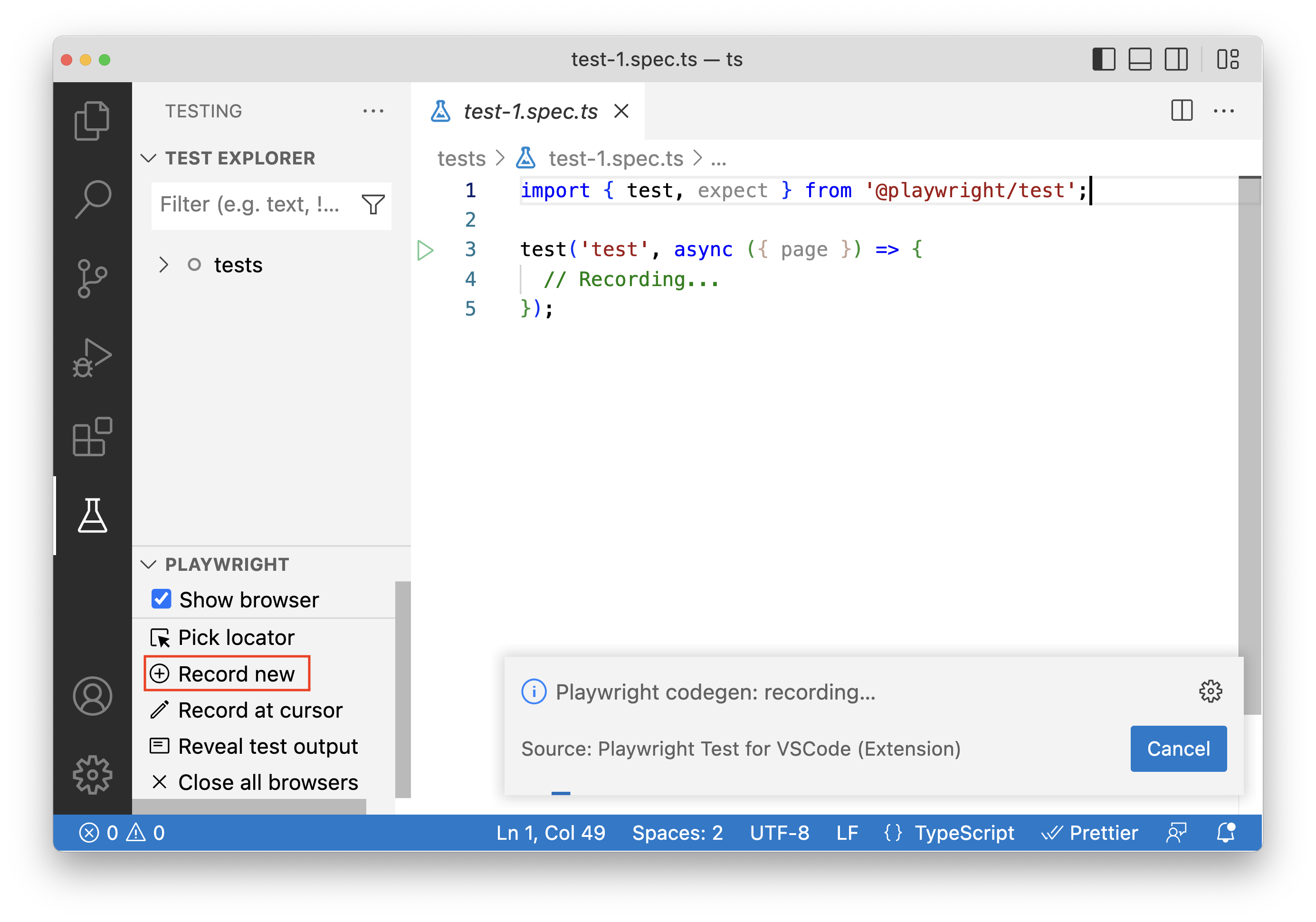
In the browser go to the URL you wish to test and start clicking around to record your user actions.
Playwright will record your actions and generate the test code directly in VS Code. You can also generate assertions by choosing one of the icons in the toolbar and then clicking on an element on the page to assert against. The following assertions can be generated:
'assert visibility'to assert that an element is visible'assert text'to assert that an element contains specific text'assert value'to assert that an element has a specific value
Once you are done recording click the cancel button or close the browser window. You can then inspect your test-1.spec.ts file and manually improve it if needed.
Record at Cursor
섹션 제목: “Record at Cursor”To record from a specific point in your test move your cursor to where you want to record more actions and then click the Record at cursor button from the Testing sidebar. If your browser window is not already open then first run the test with ‘Show browser’ checked and then click the Record at cursor button.
In the browser window start performing the actions you want to record.
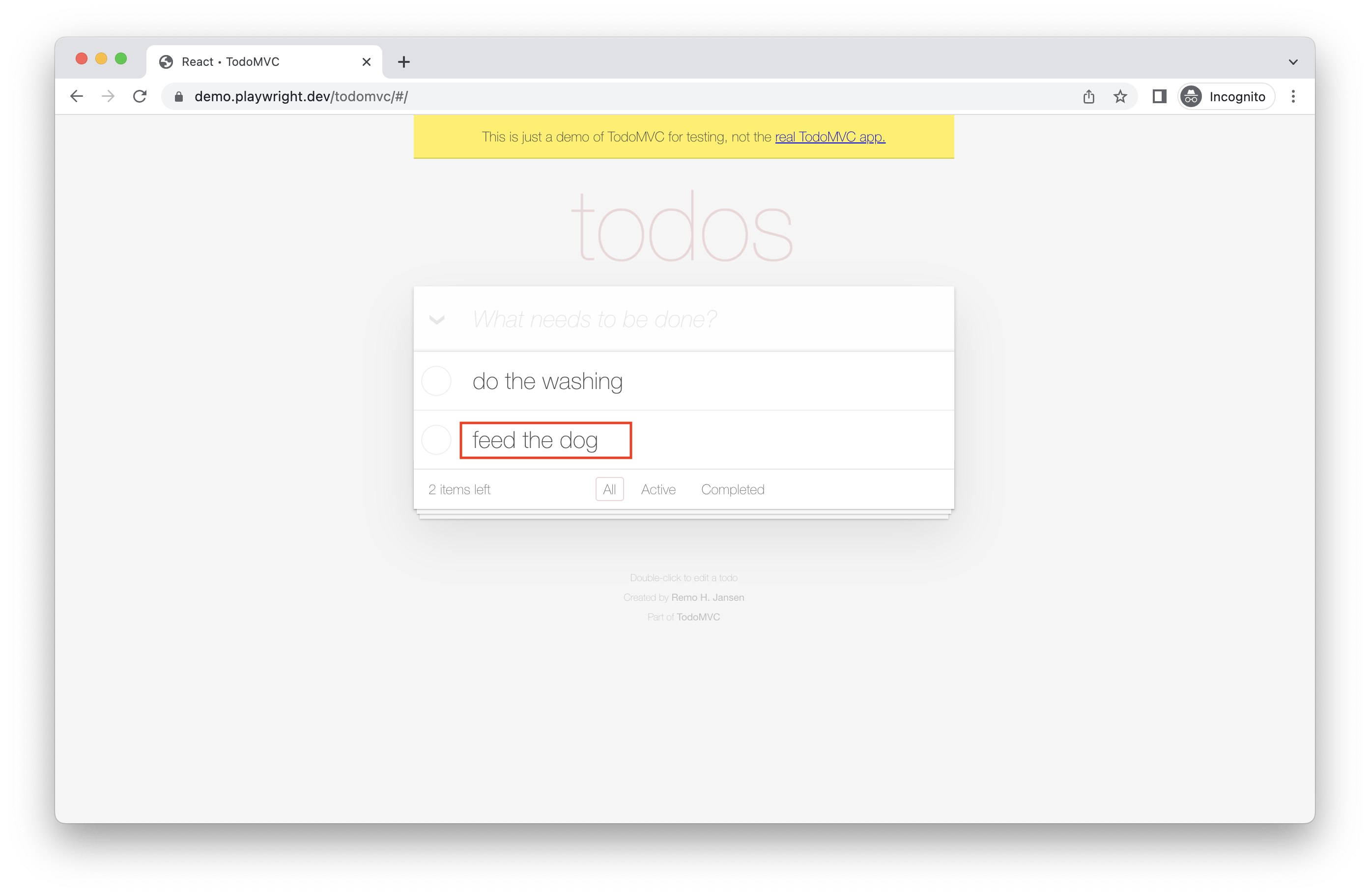
In the test file in VS Code you will see your new generated actions added to your test at the cursor position.
Generating locators
섹션 제목: “Generating locators”You can generate locators with the test generator.
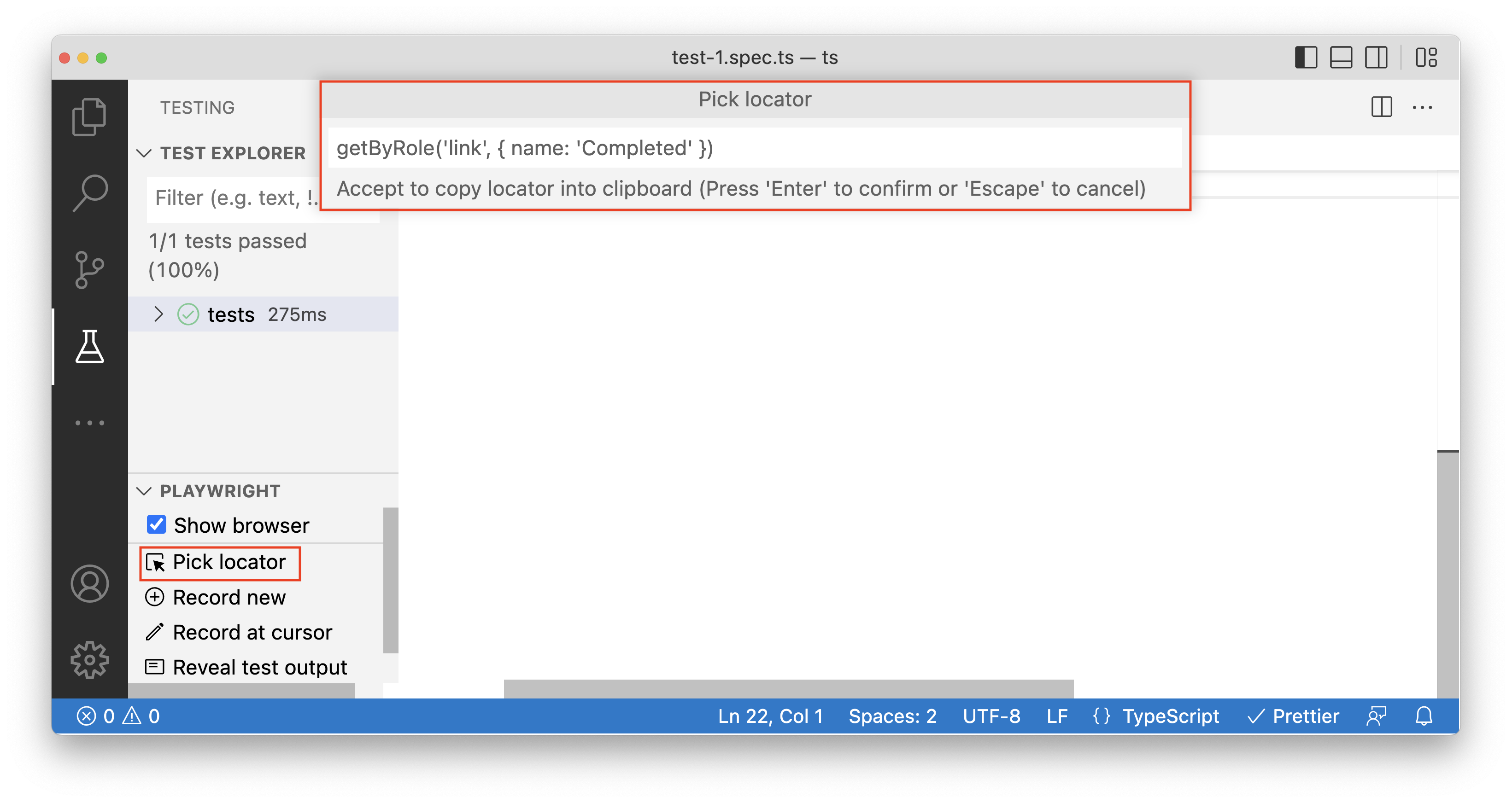
- Click on the Pick locator button from the testing sidebar and then hover over elements in the browser window to see the locator highlighted underneath each element.
- Click the element you require and it will now show up in the Pick locator box in VS Code.
- Press
Enteron your keyboard to copy the locator into the clipboard and then paste anywhere in your code. Or press ‘escape’ if you want to cancel.
Generate tests with the Playwright Inspector
섹션 제목: “Generate tests with the Playwright Inspector”When running the codegen command two windows will be opened, a browser window where you interact with the website you wish to test and the Playwright Inspector window where you can record your tests and then copy them into your editor.
Running Codegen
섹션 제목: “Running Codegen”Use the codegen command to run the test generator followed by the URL of the website you want to generate tests for. The URL is optional and you can always run the command without it and then add the URL directly into the browser window instead.
npx playwright codegen demo.playwright.dev/todomvcRecording a test
섹션 제목: “Recording a test”Run the codegen command and perform actions in the browser window. Playwright will generate the code for the user interactions which you can see in the Playwright Inspector window. Once you have finished recording your test stop the recording and press the copy button to copy your generated test into your editor.
With the test generator you can record:
- Actions like click or fill by simply interacting with the page
- Assertions by clicking on one of the icons in the toolbar and then clicking on an element on the page to assert against. You can choose:
'assert visibility'to assert that an element is visible'assert text'to assert that an element contains specific text'assert value'to assert that an element has a specific value
When you have finished interacting with the page, press the record button to stop the recording and use the copy button to copy the generated code to your editor.
Use the clear button to clear the code to start recording again. Once finished, close the Playwright inspector window or stop the terminal command.
Generating locators
섹션 제목: “Generating locators”You can generate locators with the test generator.
- Press the
'Record'button to stop the recording and the'Pick Locator'button will appear. - Click on the
'Pick Locator'button and then hover over elements in the browser window to see the locator highlighted underneath each element. - To choose a locator, click on the element you would like to locate and the code for that locator will appear in the field next to the Pick Locator button.
- You can then edit the locator in this field to fine tune it or use the copy button to copy it and paste it into your code.
Emulation
섹션 제목: “Emulation”You can use the test generator to generate tests using emulation so as to generate a test for a specific viewport, device, color scheme, as well as emulate the geolocation, language or timezone. The test generator can also generate a test while preserving authenticated state.
Emulate viewport size
섹션 제목: “Emulate viewport size”Playwright opens a browser window with its viewport set to a specific width and height and is not responsive as tests need to be run under the same conditions. Use the --viewport option to generate tests with a different viewport size.
npx playwright codegen --viewport-size="800,600" playwright.dev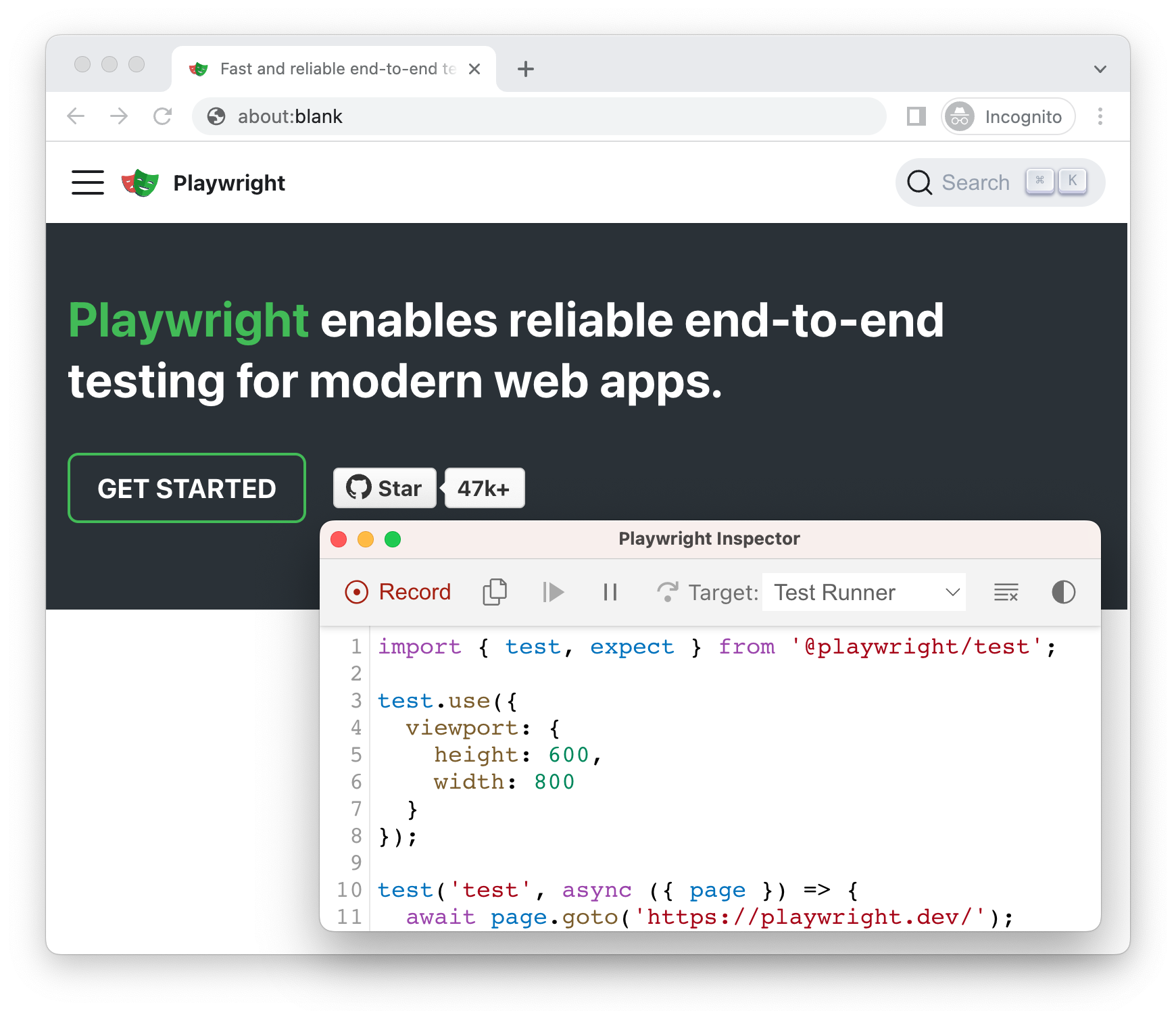
Emulate devices
섹션 제목: “Emulate devices”Record scripts and tests while emulating a mobile device using the --device option which sets the viewport size and user agent among others.
npx playwright codegen --device="iPhone 13" playwright.dev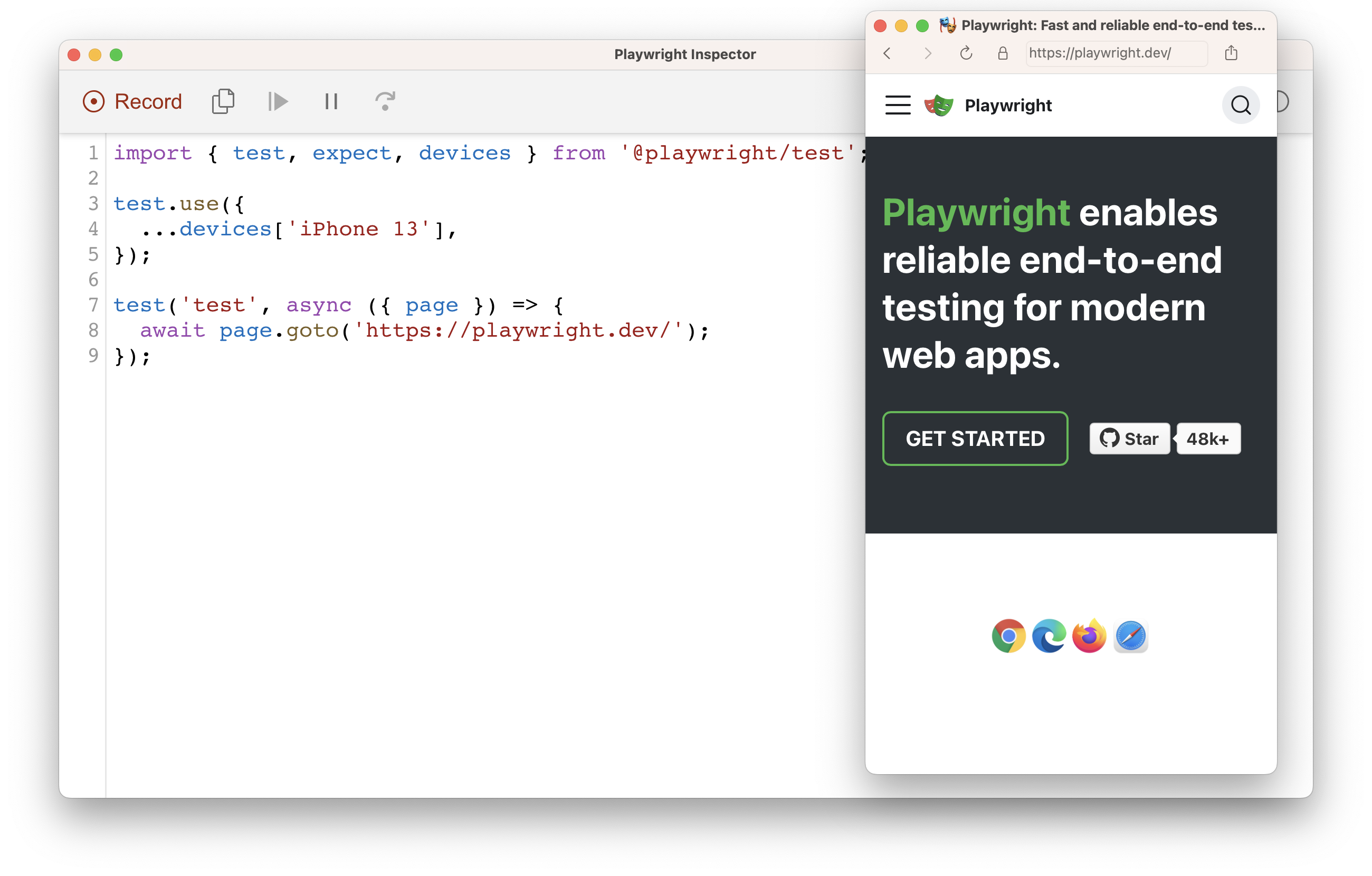
Emulate color scheme
섹션 제목: “Emulate color scheme”Record scripts and tests while emulating the color scheme with the --color-scheme option.
npx playwright codegen --color-scheme=dark playwright.dev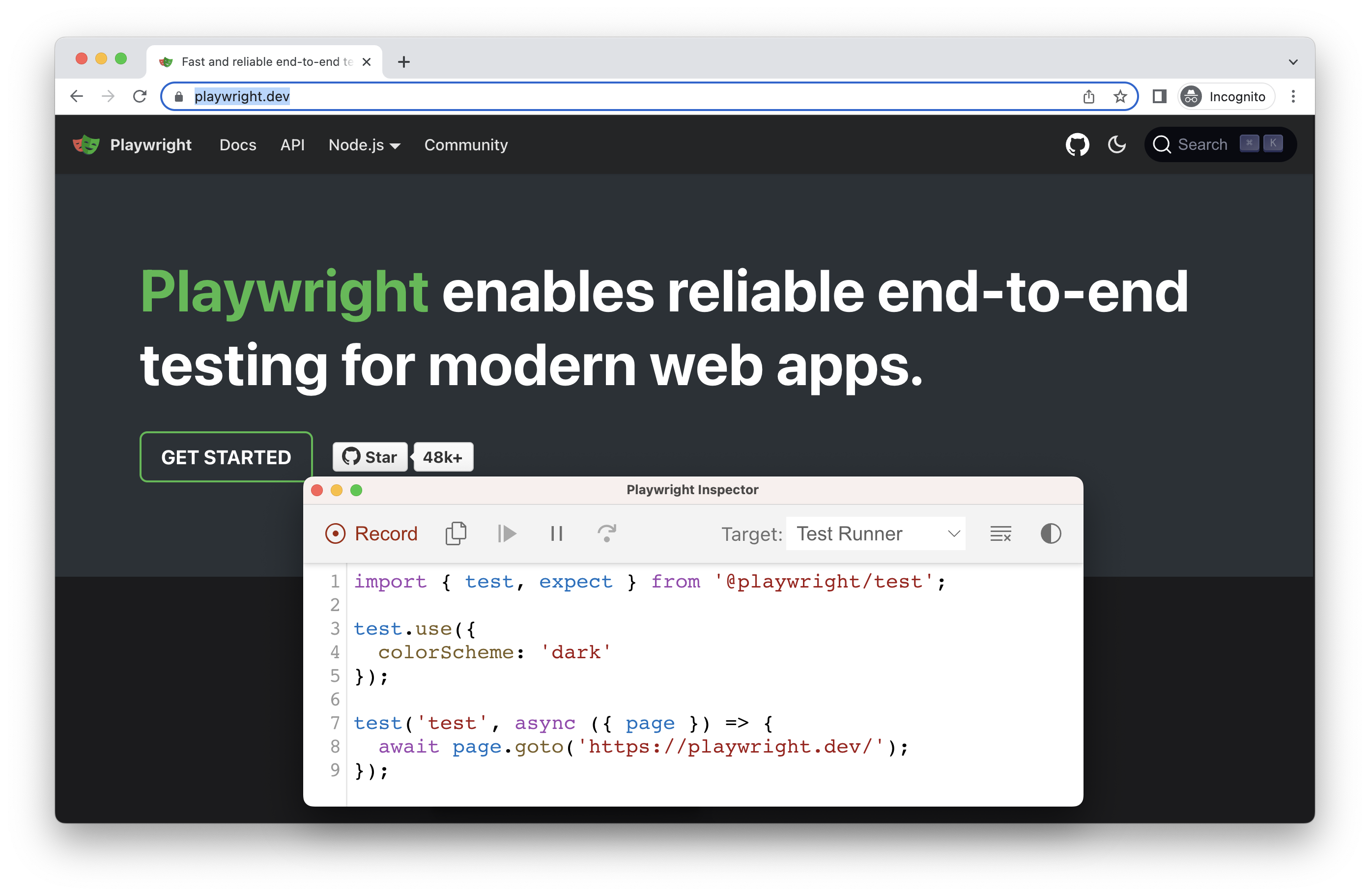
Emulate geolocation, language and timezone
섹션 제목: “Emulate geolocation, language and timezone”Record scripts and tests while emulating timezone, language & location using the --timezone, --geolocation and --lang options. Once the page opens:
- Accept the cookies
- On the top right, click on the locate me button to see geolocation in action.
npx playwright codegen --timezone="Europe/Rome" --geolocation="41.890221,12.492348" --lang="it-IT" bing.com/maps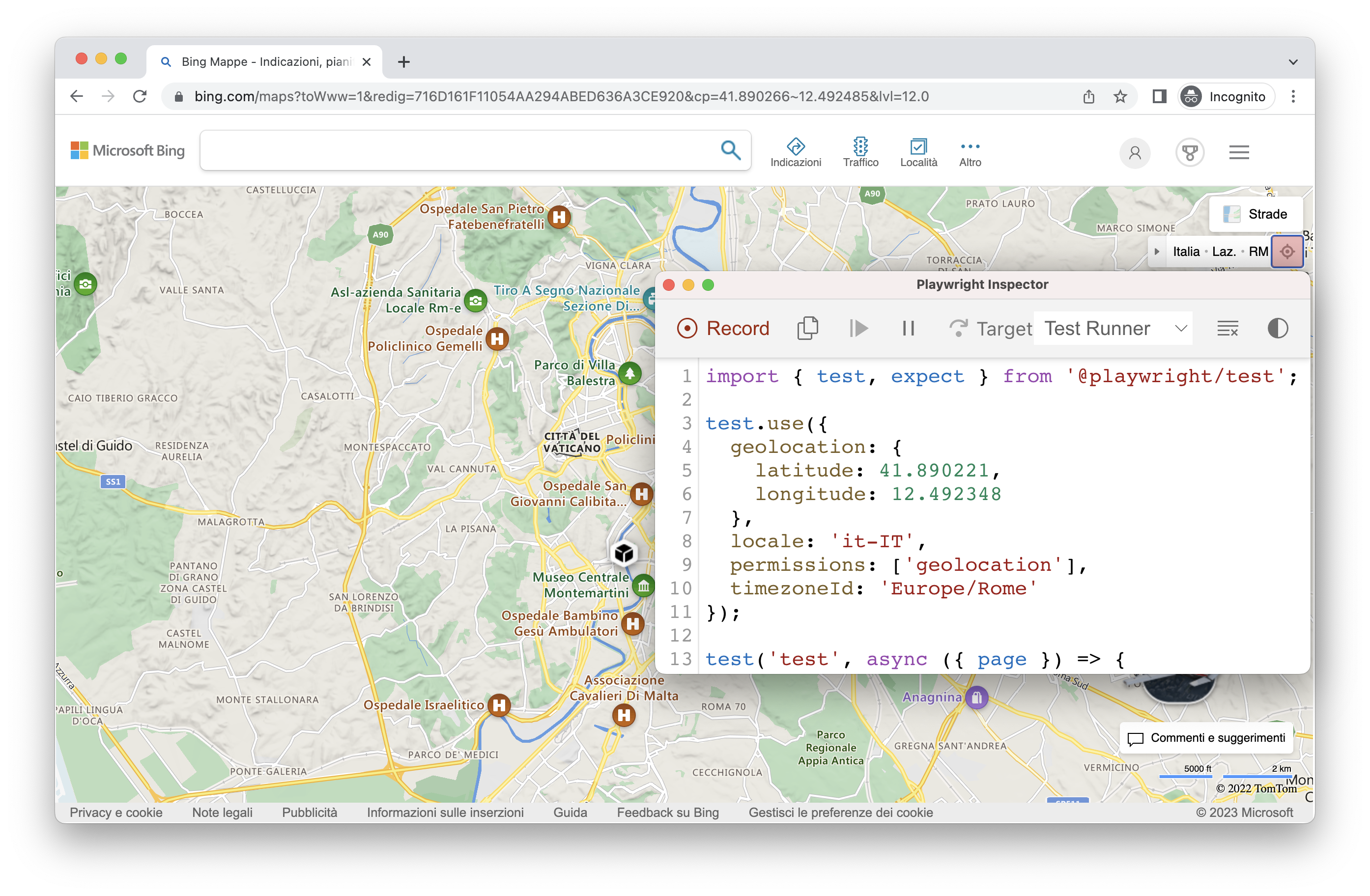
Preserve authenticated state
섹션 제목: “Preserve authenticated state”Run codegen with --save-storage to save cookies, localStorage and IndexedDB data at the end of the session. This is useful to separately record an authentication step and reuse it later when recording more tests.
npx playwright codegen github.com/microsoft/playwright --save-storage=auth.json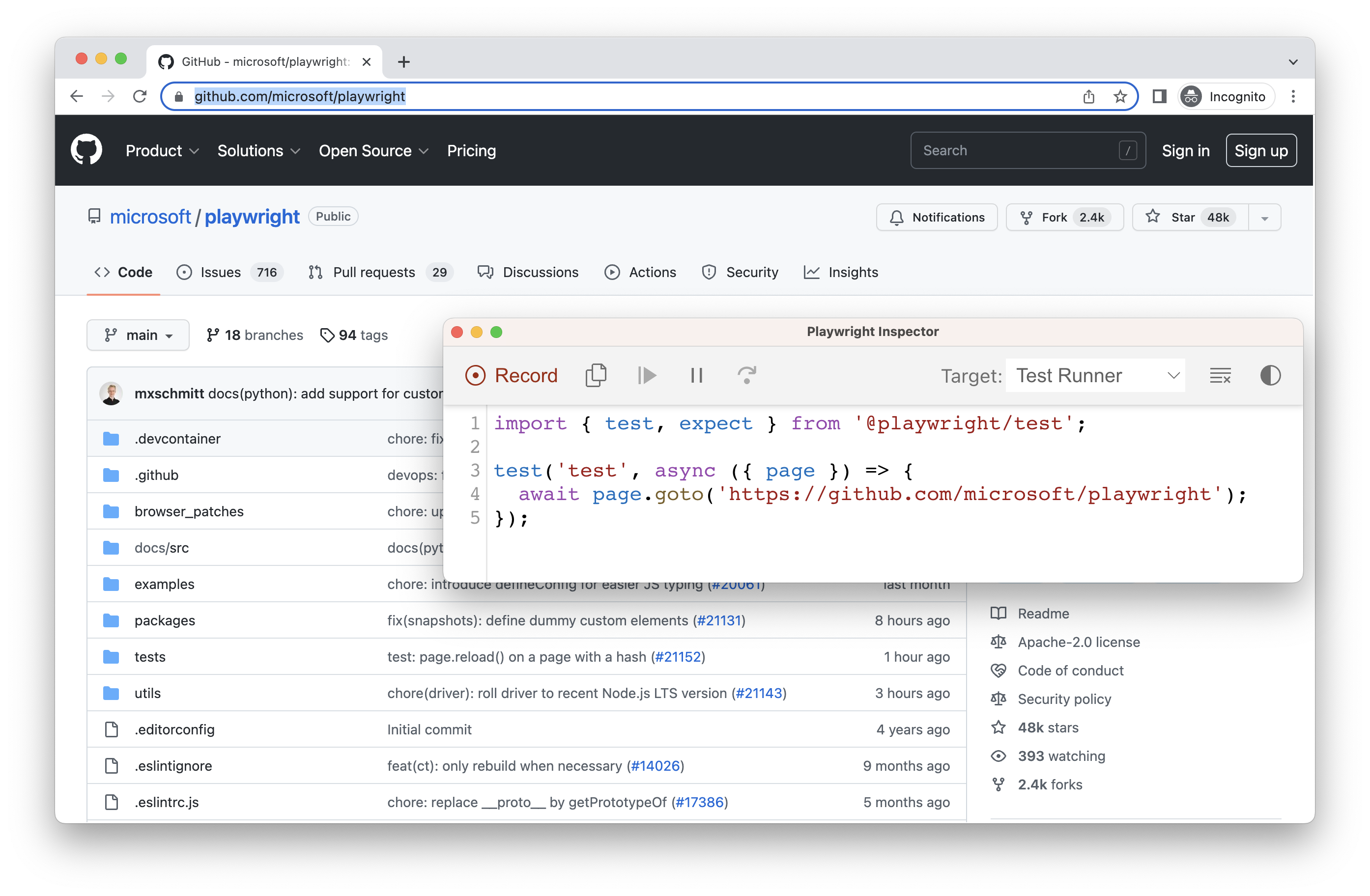
Login
섹션 제목: “Login”After performing authentication and closing the browser, auth.json will contain the storage state which you can then reuse in your tests.
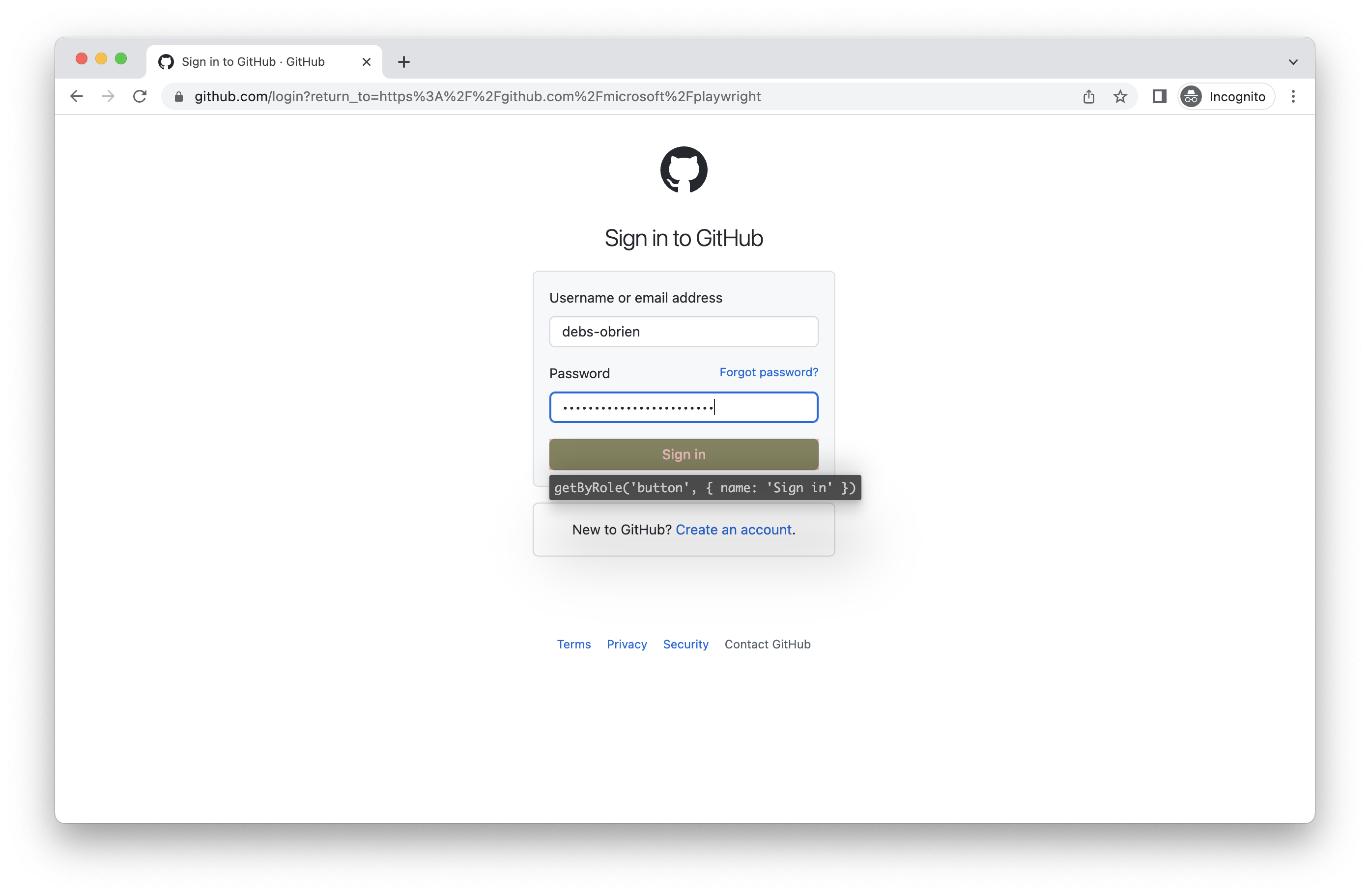
Make sure you only use the auth.json locally as it contains sensitive information. Add it to your .gitignore or delete it once you have finished generating your tests.
Load authenticated state
섹션 제목: “Load authenticated state”Run with --load-storage to consume the previously loaded storage from the auth.json. This way, all cookies, localStorage and IndexedDB data will be restored, bringing most web apps to the authenticated state without the need to login again. This means you can continue generating tests from the logged in state.
npx playwright codegen --load-storage=auth.json github.com/microsoft/playwright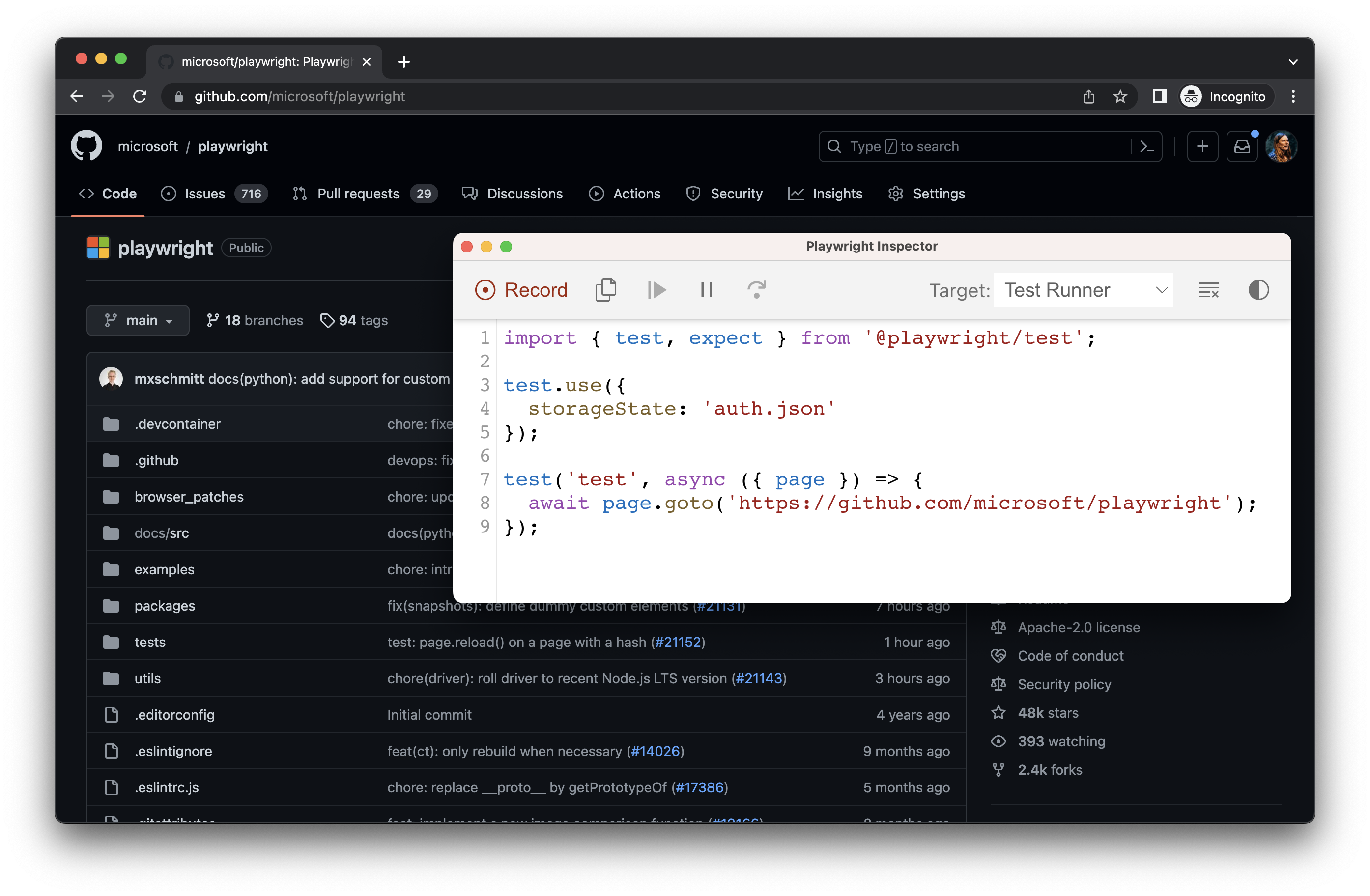
Use existing userDataDir
섹션 제목: “Use existing userDataDir”Run codegen with --user-data-dir to set a fixed user data directory for the browser session. If you create a custom browser user data directory, codegen will use this existing browser profile and have access to any authentication state present in that profile.
warning
As of Chrome 136, the default user data directory cannot be accessed via automated tooling, such as Playwright. You must create a separate user data directory for use in testing.
npx playwright codegen --user-data-dir=/path/to/your/browser/data/ github.com/microsoft/playwrightRecord using custom setup
섹션 제목: “Record using custom setup”If you would like to use codegen in some non-standard setup (for example, use browserContext.route()), it is possible to call page.pause() that will open a separate window with codegen controls.
    const { chromium } = require('@playwright/test');
    (async () => {      // Make sure to run headed.      const browser = await chromium.launch({ headless: false });
      // Setup context however you like.      const context = await browser.newContext({ /* pass any options */ });      await context.route('**/*', route => route.continue());
      // Pause the page, and start recording manually.      const page = await context.newPage();      await page.pause();    })();